
This guide will show you how to configure your Apple Mail application to access email via the new Integralvision server (post July 2018). Only for clients whose websites and email have moved to the new server.
Requirements
Before you start, be sure to have these handy:
- Your domain name: yourdomain.com
- Your email address: username@yourdomain.com
- Your email password.
- Your incoming mail settings: mail.yourdomain.com
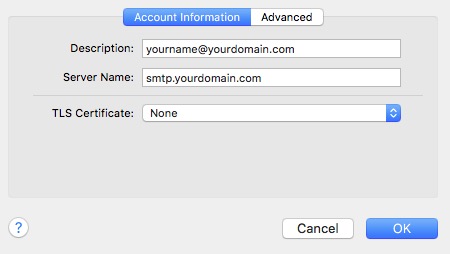
- Your outgoing mail settings: smtp.yourdomain.com
Instructions
1. Open Apple Mail and under Mail / Preferences (NOT “Accounts” which is Internet Accounts normally found under System Preferences), click the Add Account + sign at the bottom of the window.


3. Enter your email account information and click create.
- Full Name: Your name as you would like it to appear.
- Email Address: Your email address for the account you are adding.
- Password: The password for your email account.

4. Mail will attempt to contact the mail server.
When an autodiscover setting has been unsuccessful, the message “Unable to verify account name or password” will appear in a new settings box. This is normal. Simply Click Next and it should let you continue.
- Email Address: Your full email address.
- User Name: Your full email address.
- Password: The password to your email account.
- Account Type: We recommend connecting via IMAP.
- Incoming Mail Server: mail.yourdomain.com
- Outgoing Mail Server: smtp.yourdomain.com